 |
 |
||
 |
|
 |
|
 |
|||

|
|
|||||||


| Notices |
| Legacy Archived Main Board Business chat and general industry chat. All participation is welcome. Dont post your fucking spam here. |

|
|
Thread Tools | Display Modes |


 01-11-2006
|
#1 |
|
Godfather of 3D Toon Porn
Join Date: Apr 2004
Location: Northern Michigan
Posts: 327
|
 PHOTOSHOP Lesson (Soft Light Effect)
PHOTOSHOP Lesson (Soft Light Effect)
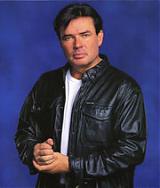
One of the cool effects I use a lot is adding a Soft Light to my images. It gives the image a soft, glamor type look. Here's a quick example Step 1: Getting Started Open an image If you're using Photoshop 6 the layer will be locked. Double click the layer to unlock it.  Step 2: Duplicating the Layer Drag the layer down to the Create New Layer icon  Step 3: Blurring the Image Select the Original Layer you created Apply a Gaussian Blur to it. (Filter/Blur/Gaussian Blur...) Put a selection of 20 in but you can experiment  Step 4: Changing the Blending Mode Click the Layer Copy and from the Mode menu, choose Soft Light  And your final image:  -Loki-
__________________
 It's coming.... Stay Tooned! Need hosting? I'm using Amerinoc and I love them! ICQ Me: 307-484-641 Or Loki|at|Lokiporn.com |

|

|
| Bookmarks |


«
Previous Thread
|
Next Thread
»
| Thread Tools | |
| Display Modes | |


 Threaded Mode
|
|


All times are GMT -4. The time now is 12:13 AM..